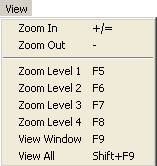
The
View Menu offers four ways to control the view.
Hyperscore
supports a variety of view and zooming actions. These actions may be used
to focus attention on a particular area of the main window in varying degrees
or to obtain an overall view of the working area. Zooming can also provide
an important secondary navigation function.
To
zoom in or out, either choose View->Zoom In/Out from the
View Menu or simply use the ‘+/=’ or ‘-‘
keys. If no window is selected, this action will always operate on
the center of the currently viewable area. If a Motive or Sketch window is
selected, this action will first center the selected window and then operate
on the center of the viewable area.
Zoom
level 1-4 (F5, F6, F7, F8)
A
staged zoom function may be accessed in the View Menu (View>Zoom
Level 1,2,3 or 4). Alternatively the function keys F5, F6,
F7, F8 may also be used to zoom in or out in discreet stages.
F5 represents the closest level of zoom, while F8 represents
the furthest out level. This Zoom function will always operate on the mouse
cursor position.
Back
to Top
View
Window
This
function will center the currently selected Motive or Sketch Window and bring
it to the closest possible zoom.
This
operation will focus on the center point of all Motive and Sketch windows
and choose a level of zoom which makes them all visible at the maximum possible
level of detail. It may be accessed either in the View Menu
at View->Center View or by simply pressing the F9
function key.
Note: navigation within the main window may also be accomplished by performing
a Ctrl+Click & Drag anywhere on the background canvas.
This will shift the entire contents of the working area and may be used to
center a particular window before zooming in or out. Alternatively, pressing
Ctrl+Arrow Keys may be used to pan the working area left/right
or up/down.