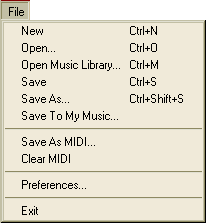
| The File menu |
Previous Next |
To create a new file, select File->New from the File Menu or press Ctrl+N. This will clear the contents of the currently active safe. You will be prompted to save the current contents of the safe before creating a new file.
To open a file in Hyperscore,
choose File->Open. This will open a standard Windows file
browser.
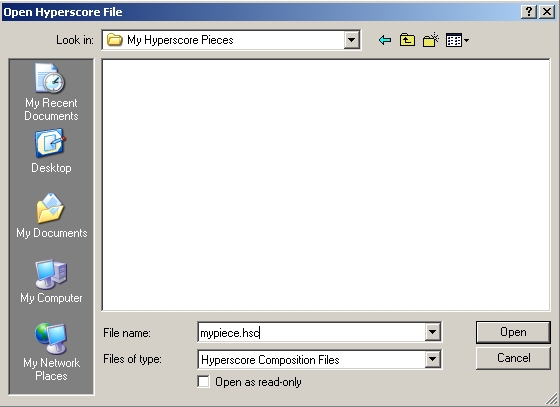
Navigate to the file you wish to open, select the file and click Open. Alternatively you may simply double-click on the desired file. You may also use the key combination Ctrl+O to open a file.
To open the Music Library choose File -> Open Music Library or press Ctrl+M. Alternatively you can press the Music Library button at the bottom of the main workspace.

You can find out more about the Music Library in the Music Library section of this guide.
To save a file in Hyperscore, choose File->Save or press Ctrl+S. The first time you save a piece, this will open a similar Windows file browser. Navigate to the folder where you wish to save your file, type a name for the file and click Save. Every subsequent time you save this file, it will automatically overwrite previously saved versions.
Save to My Music enables you to save music to your own local music library. Select File Menu ->Save to My Music, and navigate to where you want to save the file. When you open the Music Library, you will see your music in a folder called 'My Music'.
Clear MIDI may be used to stop any 'stuck' MIDI notes. Occasionally when you stop playback, a note may continue to sound. Choosing Clear MIDI from the File Menu will send a MIDI 'All Notes Off' message, which will clear these 'stuck' notes.