|
The Edit Menu |
Previous Next |
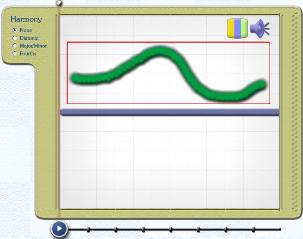
To select a single note or stroke, first click the Arrow Tool in the top left-hand corner of the main Hyperscore window.

Now click
on the desired note or stroke. It will be highlighted by a red box and may
be cut or copied.
To select a number of notes or strokes, first check the Arrow Tool. Ensure that the Sketch, Melody or Percussion Window containing the desired notes or strokes is selected by clicking on it (you will know that a particular window is selected as the playbar will appear). Now click and drag to select the required group of notes or strokes.
If you
begin the dragging action in a window, then this single click action will
automatically select the window and begin the drag. However, if you wish to
select a group of objects, sometimes it is easier to begin the dragging action
somewhere on the background canvas. In this case it will be necessary to first
select the required window (using the Arrow Tool) and then begin the click-drag
action.
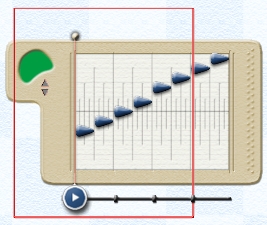
On lifting the mouse, any notes within the drag rectangle will be selected.
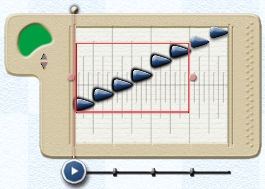
If you wish
to precisely select a small number of strokes or notes from within a more
complex texture, you may do so by choosing the Arrow Tool
and successively Shift-clicking on the required strokes or notes. The texture
of the selected strokes or notes will change.
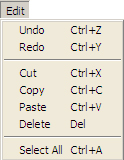
Select All may be used to select all notes or strokes in a Melody, Percussion or Sketch Window. Using the Arrow Tool, first select the required window, then chooses Select All from the Edit Menu or press Ctrl+A.
Cut operates on any note or combination of notes in the Melody and Percussion Windows, or any stroke or combination of notes in the Sketch Window.
Select the desired note(s) or stroke(s) as described above and choose Edit->Cut from the Edit Menu or press Ctrl-X. The selected note or stroke will be removed from the window, but will be copied to the clipboard and may then be pasted to the same or another window.
Copy operates on any note or combination of notes in the Melody and Percussion Windows, or any stroke or combination of notes in the Sketch Window.
Select the desired note(s) or stroke(s) as described above and choose Edit>Copy from the Edit Menu or press Ctrl+C. The selected note(s) or stroke(s) will remain in the window, but will be copied to the clipboard and may then be pasted to the same or another window.
Having either cut or copied notes or strokes from the Melody, Percussion or Sketch Windows, these may be pasted into other windows of similar type.
To paste musical material into a window, use the Arrow Tool to select the required window and choose Edit>Paste from the Edit Menu or press Ctrl+V.
It is not possible to paste material from a Melody or Percussion Window into the Sketch Window or vice versa.
In a Melody
or Percussion Windows, the paste action will overwrite any notes in the
destination window. Pasted notes will always appear beginning at the left-most
part of the destination window. They will automatically be selected, as
indicated by the red box and the notes which they will overwrite will be
greyed out.
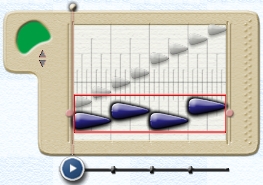
To Delete a note or stroke, or a group of notes or strokes, first select the desired note(s) or stroke(s) as described above then choose Edit->Delete from the Edit Menu.