|
|
Each Template,
Collection and Melody in the Music Library has its own instrument
sound(s) and tempo (speed).
When you import the motive you can choose to keep the instrument sound
and tempo of the piece, or to change the piece to match the motive.
You do this by checking the boxes in the Motive Library window.
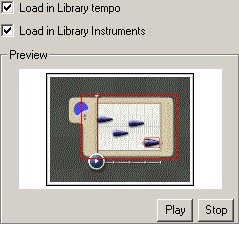
If the 'Load in Library Tempo' box is checked, the
tempo (speed) of the piece will change to match the motive. If it is
not checked, the motive will change to the speed of the piece.
If the 'Load in Library Instruments' box is checked,
incoming motives will keep their instrument sounds. If these sounds
are not available in the Instruments Menu, unused instrument sounds
in the menu will be replaced by the required sounds. If the 'Load
in Library Instruments' box is not checked, the motive instrument
sound will change to the equivalent sound currently available in the
menu.
|
| Tips and Tricks |
|
Don't forget you can change the instruments
available in the Instruments Menu.
When importing a melody, its color may change
to the next available color from the color palette. If all available
colors are used, colors may repeat. In this case, a line in the Sketch Window will play the melody of the 'same-color melody
nearest to the start of the line.
Also, if the 'Load in Library Instruments' button is checked,
the incoming motive will keep its instrument sound. The lines
in the Sketch Window will not change their sound though, unless
the incoming motive causes the instrument menu to update, replacing
the sound associated with these strokes with the incoming motives
sound. |
| Further Help |
Hyperscore
User Guide>Instrument Sounds
Hyperscore User Guide>Tempo |
|
|
|