 |
|||||||||
| Adding Harmony to your Ringtone | |||||||||
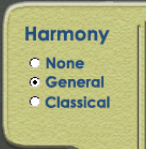
Once you have made some melodies and drumbeats and drawn some lines in the Sketch Window, you can use Hyperscore's powerful harmony function to add interest to your piece. It works like this. In the top left-hand corner of the Sketch Window is the Harmony Options tab.
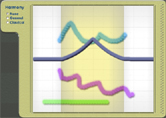
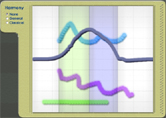
If you choose 'None', no harmony will be applied to your piece and all your melodies will sound exactly as you made them. If you choose 'General', Hyperscore will make some small alterations to the notes in the Sketch Window, so as to make sure they are all in the same key. This will make your melodies work together better, especially for contemporary or rock styles. You can change the key by manipulating the Harmony Line (see Tips and Tricks opposite). If you choose 'Classical', Hyperscore
will make different kinds of alteration to the notes in the Sketch Window
so as to give your piece a classical feel. Again, you can control the
exact harmonic effect by manipulating the Harmony Line.
Note: In 'None' harmony mode, the Harmony Line has no effect. In 'General' harmony mode, only the Spike (key change) gesture is recognized. In 'Classical' harmony mode, both Spike (key change) and Curve (local harmony) gestures are recognized.
As a general rule, if you have a very clear idea exactly what sound you want to achieve, use 'None' mode. If you want a little help and are working in a contemporary style, use 'General' mode. If you want a little more help, or are aiming for a more classical effect, use 'Classical' mode. |
|
||||||||
| Previous Next | |||||||||
| |